 Docklume
Dock magnification
Icons grow smoothly under the pointer and settle back as it moves on, with a name tooltip for each app.
A smooth, magnifying dock with a Dynamic Island, a Side Dock and built-in tray panels. Native, light and free.
Real recordings of Docklume on Windows 11, filmed on a green screen and shown at full resolution.
Docklume replaces the taskbar with a dock, an island and a tray that work together. Every image on this site comes from a real recording of Docklume.
Icons magnify smoothly under the pointer, bounce when an app opens and show live previews of every window. Drop a file on an app to open it there, or drag a shortcut in to pin it.

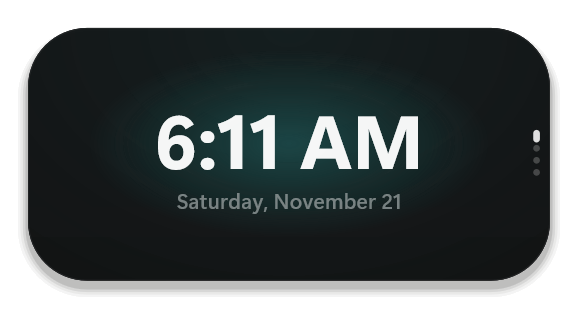
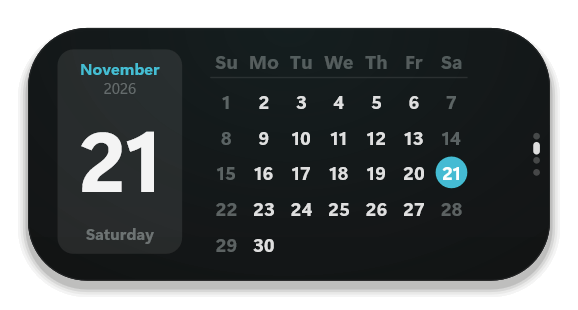
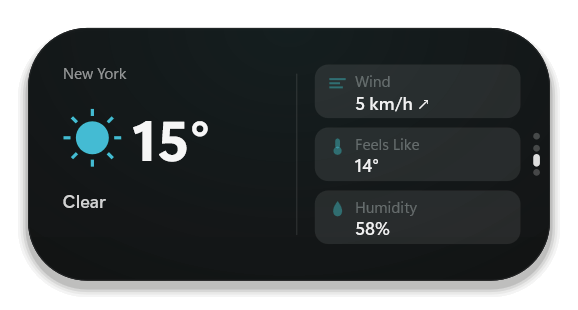
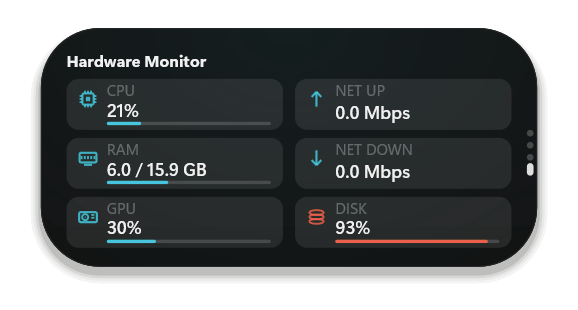
A compact pill at the top of the screen shows the time and weather, then expands to show media, the calendar, a hardware monitor and incoming notifications.

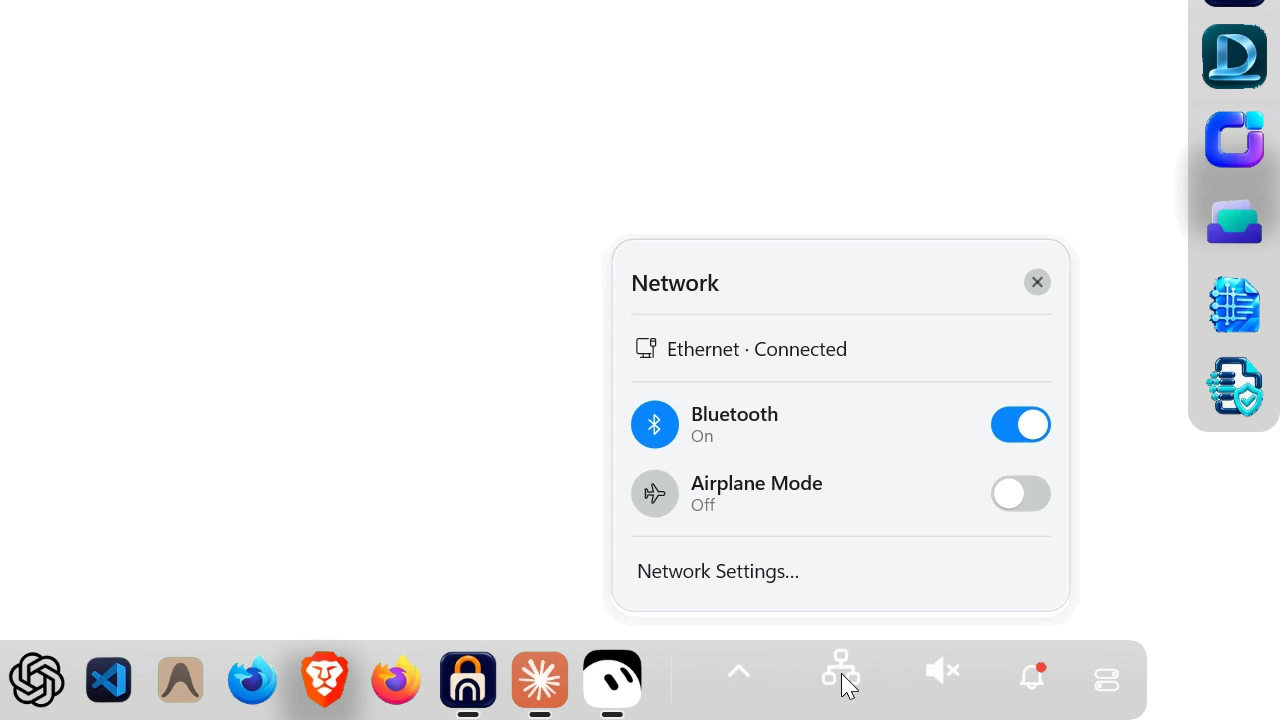
Network, sound, Quick Settings and a notification centre open right above the dock, so the Windows taskbar can stay out of sight.
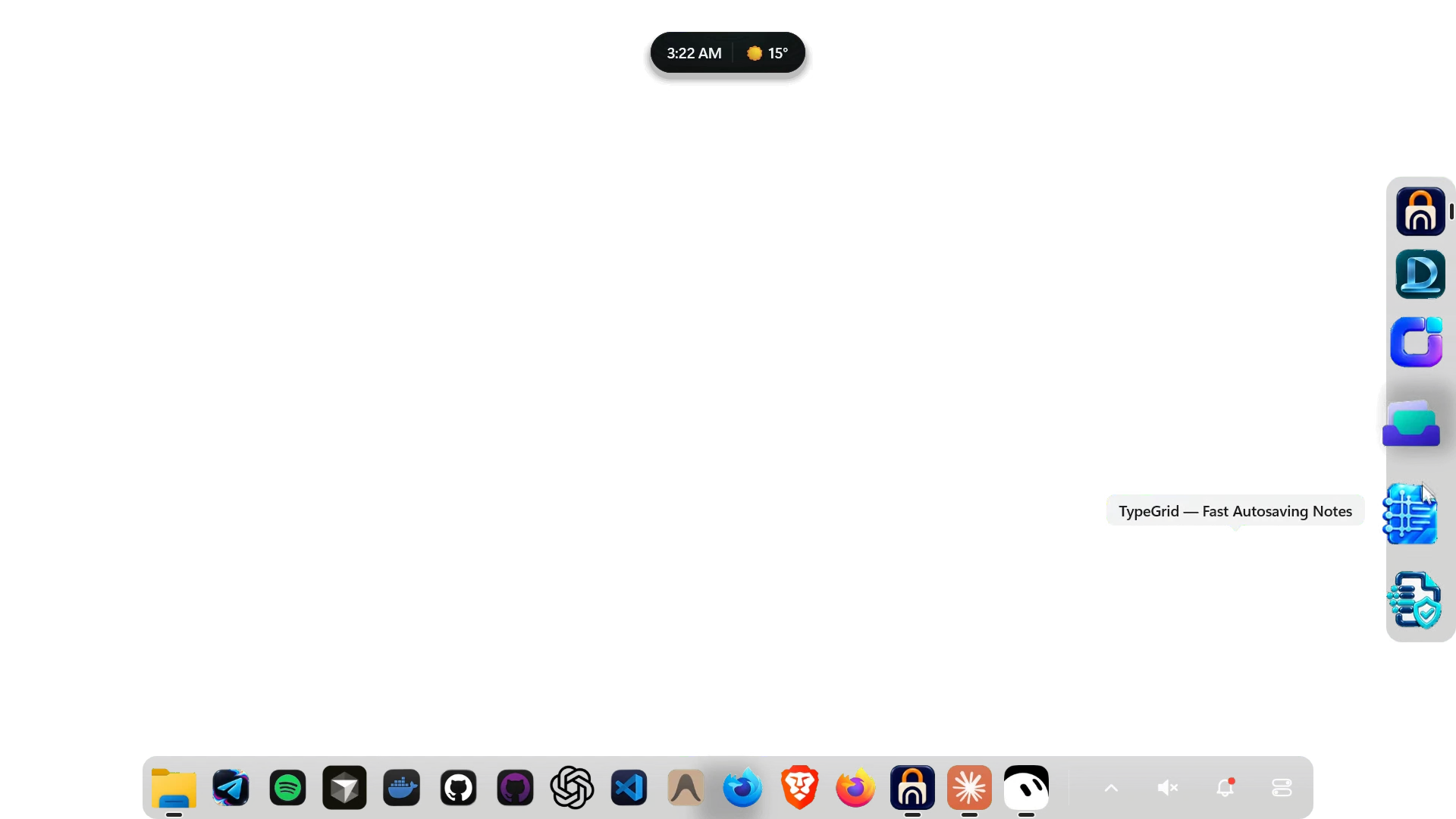
An optional Side Dock on the screen edge holds extra apps. It shows on the desktop and steps aside while you work, so it never takes space from your windows.
All 55 features in Docklume 1.1.0. Show them all, or pick a group.
Icons grow smoothly under the pointer and settle back as it moves on, with a name tooltip for each app.
Rest the pointer on any icon to see the app's name in a clean tooltip above the dock.
Open a pinned app straight from the dock: its icon bounces while the app starts, and a small indicator marks it as running.
Hover an app to see a live preview of each of its open windows.
When an app has several windows open, one click lays them out side by side so you can pick the right one.
Turn on Show minimized windows and each minimized window gets its own live thumbnail in a separate section of the dock, ready to restore.
Drag a file from File Explorer onto an app in the dock and it opens right away in that app.
Drop an app or its shortcut between two icons and it is pinned to the dock exactly where you let go.
Keep any running app in the dock with one click from its menu, so it is always ready to launch.
Remove an app you no longer need from its menu; the dock closes the gap instantly.
Drag any pinned icon to a new spot and the other icons slide aside to make room.
Right-click an app for its windows, pinning, Side Dock and administrator options, plus End task for an app that has stopped responding.
Turn on Recent apps to keep the apps you used last one click away at the end of the dock.
The dock tucks itself away to give you the full screen, then slides back up when the pointer reaches the bottom edge.
Place the dock at the bottom, top, left or right edge of the screen.
Choose how big the icons are and how far they grow under the pointer.
Add a Start button to the dock to open the Start menu without the taskbar.
Switch between a compact floating dock and a full-width bar along the screen edge.
Running apps are marked by a dot, bar or line, in any colour you like.
Prefer a calmer desktop? Reduce motion keeps icons still while tooltips still show each app name.
Right-click the dock for quick actions: turn hiding on, show the desktop, add your pinned taskbar apps or open Settings.
Click the bell to see recent messages grouped by app, then clear them all at once.
Everyday toggles such as Wi-Fi, Bluetooth, Focus and Night light, plus brightness and volume, in one panel.
See your connection at a glance and open the network panel straight from the dock.
Click the speaker for a quick volume panel right above the dock.
New notifications light up the bell next to the sound icon, so you can tell at a glance when something arrives.
A compact pill at the top of the screen shows the time and weather, and expands smoothly when you hover it.
Scroll over the expanded island to flip between its pages, such as the calendar, weather and hardware monitor.
Live CPU, memory, graphics, disk and network activity in the Dynamic Island.
The island shows what is playing with artwork, a scrolling title, playback controls and a seek bar.
New notifications slide into the Dynamic Island so you can read them without looking away from your work.
Volume changes appear as a clean level indicator in the Dynamic Island.
Copy something and the island briefly confirms what was copied.
An optional live readout of frame rate, CPU, memory, graphics and disk use at a glance.
Place the island at the top left, centre or right, and scale it to suit your screen.
An optional second dock on the screen edge holds more apps, with the same smooth magnification and name tooltips.
The Side Dock shows on the desktop and fades away as soon as you start working in a window, then returns when you go back to the desktop.
Right-click any app and choose Move to Side Dock to keep it on the edge, or move it back to the main dock the same way.
Give the Side Dock its own theme, or let it follow the main dock.
With the animation on, windows pour into their dock icon when minimized and flow back out when restored.
Apps launched from the dock stretch out of their icon as they open.
Closing a window plays the same smooth genie effect into the dock.
Switch the animation off and windows minimize and restore with the standard Windows animation.
With the switch off, apps open from the dock with the standard Windows animation and no bounce.
With the switch off, windows close exactly as they normally do in Windows.
From frosted glass to bold bars, pick any of 55 ready-made looks for the dock in a single click.
Fine-tune the dock colour, opacity, corner roundness, border and shadow to create a look that is all yours.
Click a theme card and the dock changes instantly, so you can compare looks right away.
Swap any app icon for your own image, or reset it to the original at any time.
Every dock option lives on one clear page: position, size, magnification, behaviour, tray items and the Side Dock.
Turn the opening and closing animation on or off with a single switch.
Choose where the island sits, how big it is and which pages and alerts it shows.
Choose whether minimized windows appear as thumbnails in their own section of the dock.
Choose whether Docklume opens at login, check the version and restore the default look and behaviour.
Showing all 55 features
Written in native code. It starts quickly and stays light while idle.
No ads, no accounts, no telemetry. Your settings stay on your PC.
Quit from the dock’s menu and your normal taskbar comes straight back.
Free to use and licensed under the GNU GPL v3.0.
Docklume is built in the open and updated often. Version 1.1.0 is the current release.
Everything below ships today, free.
New work is planned carefully and shipped when it’s ready. The ideas people send in decide what comes next.
Suggest a featureNothing here is a promise of a date or a specific change.
Requires Windows 11 (64-bit). Free and open source under GPL-3.0.